How to Track Open Issues Over Time in Jira (with Historical Trends)
The Missing Metric: Open Issues Over Time in Jira
Jira provides robust features for managing workflows and tracking the current status of issues, but its built-in reports have limitations when it comes to visualizing historical trends – specifically, how the number of open (unresolved, or in a particular status) issues changes over time. For many project managers, observing whether the backlog is growing or shrinking over time is essential for effective planning and evaluating progress.
Tracking historical open issues, rather than just the current state, helps teams move beyond reactive ticket management and toward long-term backlog health analysis. This type of report is a frequently requested feature in the Jira community, as it enables teams to identify trends, measure the impact of process changes, and communicate progress clearly over weeks, months, or quarters.
Why This Metric is Valuable: The Business Use Cases
The demand for tracking historical open issues isn’t about creating pretty charts. It’s about gaining practical insights to support informed decision-making. Here’s how it helps:
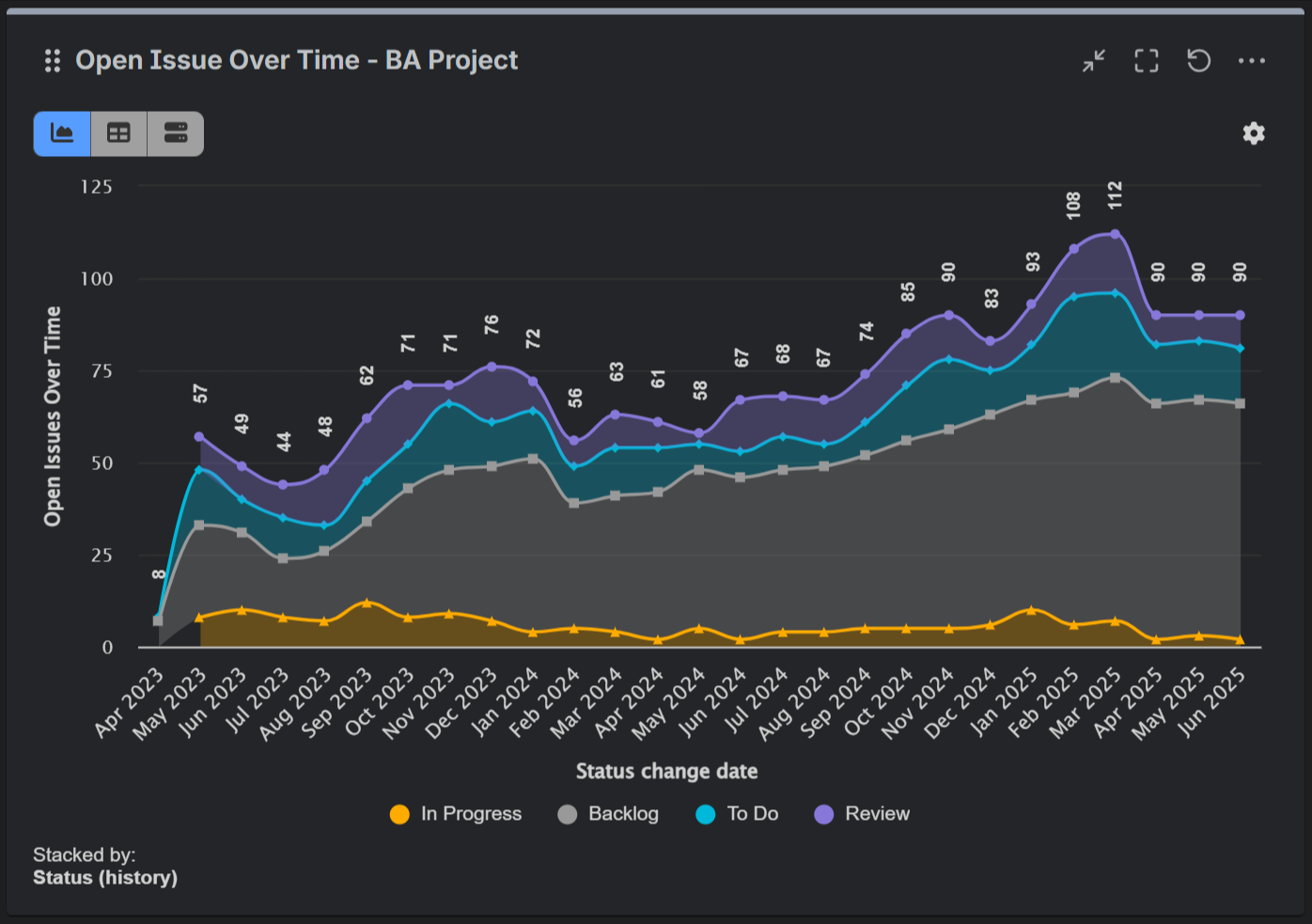
- Backlog Management: A trend line of unresolved issues over time gives a clear picture of your backlog’s state. If the number is increasing, it may indicate the need for more resources or process improvements. If it’s decreasing, it can reflect improved efficiency. This kind of visibility supports better planning and prioritization.
- Evaluating Process Changes: If you’ve introduced a new workflow or change in process, tracking historical data helps determine whether it had the intended impact. Instead of relying on assumptions, you can connect process changes to shifts in backlog size and assess effectiveness based on real data.
- Improved Stakeholder Reporting: When leadership requests for updates on progress, Jira’s native “Created vs. Resolved” chart can be misleading. In particular, its “Trend of Unresolved” line may assume that there were zero open issues at the beginning of the selected period, which can result in an inaccurate trend. A more accurate alternative is a chart that allows you to filter for issues in certain statuses at the beginning of the selected timeframe. This enables you to track how the number of open issues (in a particular status or group of statuses) changes over time, offering a more realistic view of progress and supporting clearer reporting.
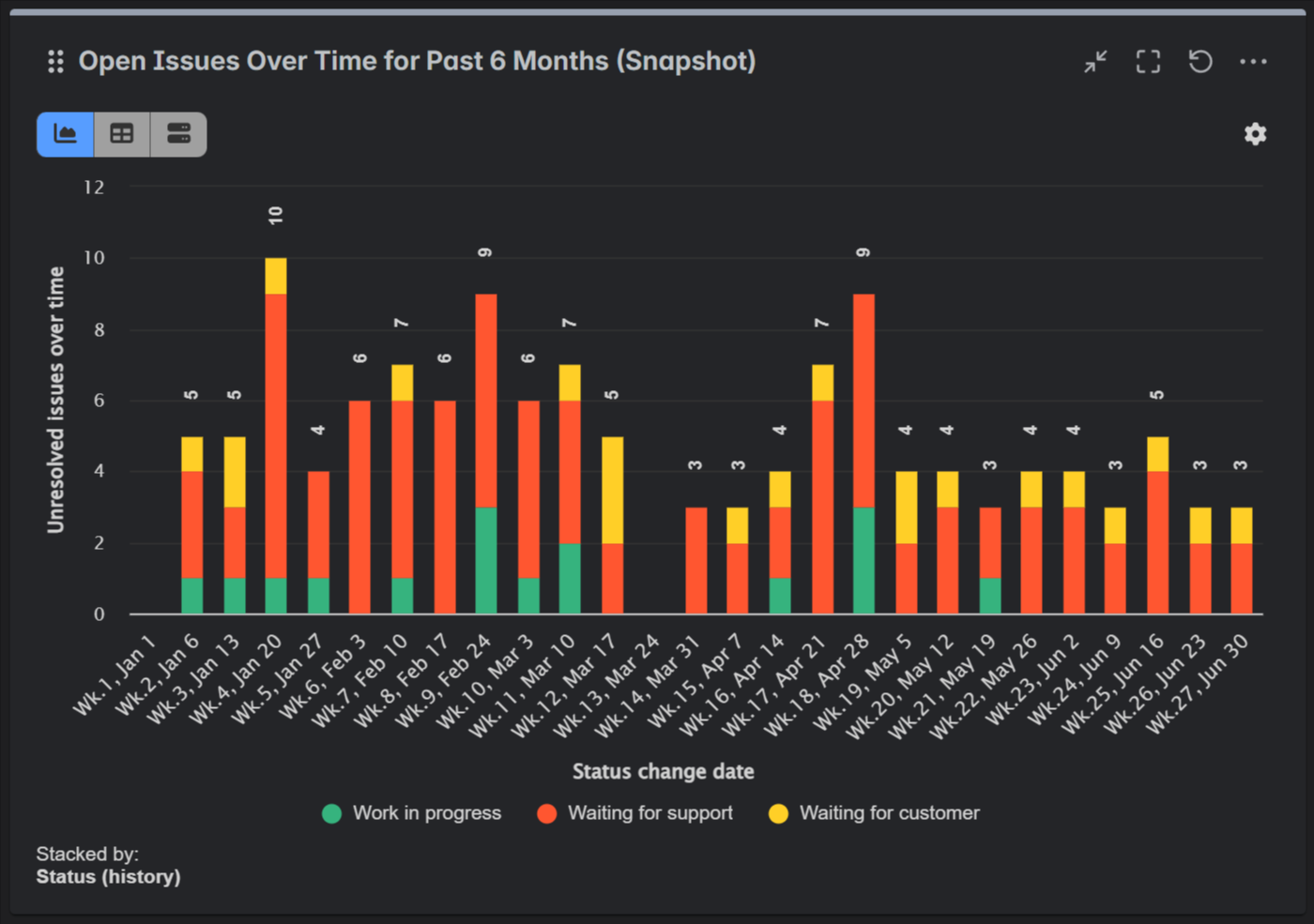
For instance, a support team using Jira Service Management might monitor the number of issues in “Waiting for Support” or “Waiting for Customer” status each week. This helps reveal workload pressure and capacity issues, or seasonal patterns.
The Solution: Charting Open Issues Over Time with Performance Objectives App
While this specific historical report isn’t a part of Jira’s native toolkit, the Atlassian Marketplace offers a solution. The Performance Objectives app for Jira is designed to fill this (and many other) need by providing a flexible “Number of issues over time in status” metric.

With the Performance Objectives app, you can add a gadget to your Jira dashboard that accurately visualizes this trend for any status or combination of statuses you choose. Choose between bar chart with the Performance Objectives gadget and line/area chart with the Performance Trend gadget. Whether you want to track ‘Open’ and ‘In Progress’ bugs, ‘Waiting for Support’ tickets, or custom statuses specific to your workflow, the “Number of issues over time in status” metric provides the flexibility you need. It offers two distinct counting modes to fit your reporting needs:
- Snapshot in time: This mode provides a precise historical trend of your backlog. It counts issues that were in the selected status(es) at the very end of each time interval (day, week, etc.). For example, an issue created in the morning and moved to ‘Resolved’ in the afternoon will not be counted in that day’s snapshot of ‘Open’ issues. This is ideal for accurately answering the stakeholder question, “How big was our backlog at the end of each week last quarter?”
- Full time: This mode measures the total volume of issues that passed through a status. It counts any issue that was in the selected status(es) at any point during the interval, regardless of its end-of-period status. For example, an issue created and resolved on the same day will be counted as having been in an ‘Open’ status for that day’s interval. This is useful for understanding total workload, activity, or churn within a period.
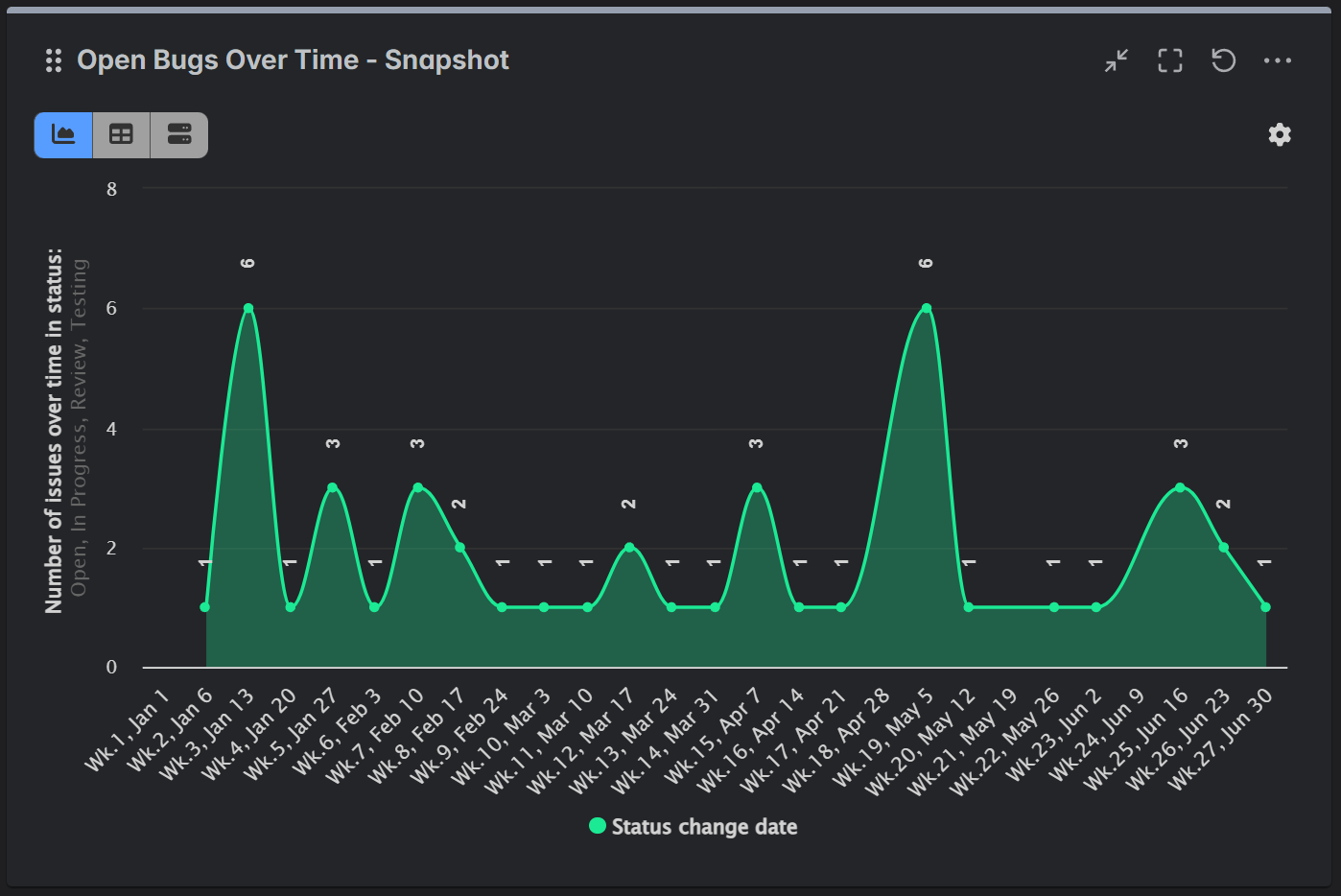

Use the “Status was” option in the app’s data source settings to filter issues that were in the selected statuses at the start of your chosen reporting timeframe. Be sure to select the same statuses when configuring the metric to ensure consistency.
When using the “Number of issues over time in status” metric, the “Status Change Date” field is automatically selected in the Display by setting to ensure accurate reporting based on when status transitions occurred.
Additionally, the app offers a field called “Status (history)”, which allows you to display the metric based on the historical statuses of issues – unlike the Jira system field “Status“, which always reflects the current status. This enables you to analyze status transitions over a defined time frame, providing deeper insight into workflow dynamics.
Start Tracking Historical Status Trends Directly in Jira
Stop fighting with spreadsheets and start making data-driven decisions. By adding this capability to your Jira instance, you can move from guesswork to certainty and provide every stakeholder with a clear, accurate picture of your team’s progress.
Start a free 30-day trial of the Performance Objectives app from the Atlassian Marketplace today!