
 Beyond the Jira Velocity Report: Enhancing Multi-Sprint Reporting
Stop Exporting to Excel: Create Custom KPIs Directly in Your Jira Dashboard with Custom Formula
Stop exporting Jira data to Excel. Create custom formula reports and KPIs directly in Jira using the Performance Objectives app.
Beyond Spreadsheets: Creating Custom Formula Reports in Jira
A common challenge for teams using Jira is the need to export data to external spreadsheets to perform manual calculations for their Key Performance Indicators (KPIs). This workaround is often necessary when specific custom Jira reports are required, as Jira’s native reports and gadgets do not support custom formulas – unless you are a Jira Cloud Enterprise customer using Atlassian Analytics. Even popular third-party charting apps from the Atlassian Marketplace may not support the custom formula calculations needed for certain reports. The inability to apply custom formula metrics directly within the Jira dashboard can lead to a time-consuming and error-prone process that separates data from its source and delays important insights.
The Performance Objectives app for Jira, with its Formula Metrics feature, offers a solution to this challenge. It allows users to create and display custom, complex KPIs directly on their Jira dashboard. This functionality eliminates the need for manual exports, enabling teams to perform their calculations and visualize the results without leaving the Jira environment.
Finding the Right Reporting Approach on the Atlassian Marketplace
The Atlassian Marketplace offers a range of reporting solutions to fit different team needs. For instance, powerful business intelligence tools like EazyBI provide deep, multi-dimensional analysis but often require specialized knowledge to use to their full potential. On the other hand, scripting apps like Jira Misc Workflow Extensions (JMWE) are excellent for creating calculated fields at the individual issue level. In between, many apps offer libraries of pre-configured reports for standard metrics.
By comparison, the Performance Objectives is a versatile, all-purpose charting and reporting app for Jira that addresses the need for custom calculations. Its Formula Metrics feature is designed for ease of use, allowing teams to build custom KPIs directly in the gadget’s user-friendly interface. This provides powerful reporting capabilities without demanding the deep business intelligence knowledge required by more specialized tools, making the creation of custom reports accessible to a broader audience.
How Formula Metrics Work
The Formula Metrics feature in the Performance Objectives app allows you to combine multiple metrics from the same or even different data sources and apply mathematical operations to them. This means you can:
- Perform basic arithmetic: Add, subtract, multiply, and divide metrics.
- Create ratios and percentages: Easily calculate efficiency and completion rates.
- Apply weights: Assign different levels of importance to the different parameters in your calculation.
- Use conditional logic: Create conditional metrics and use them as parameters for even more advanced calculations.
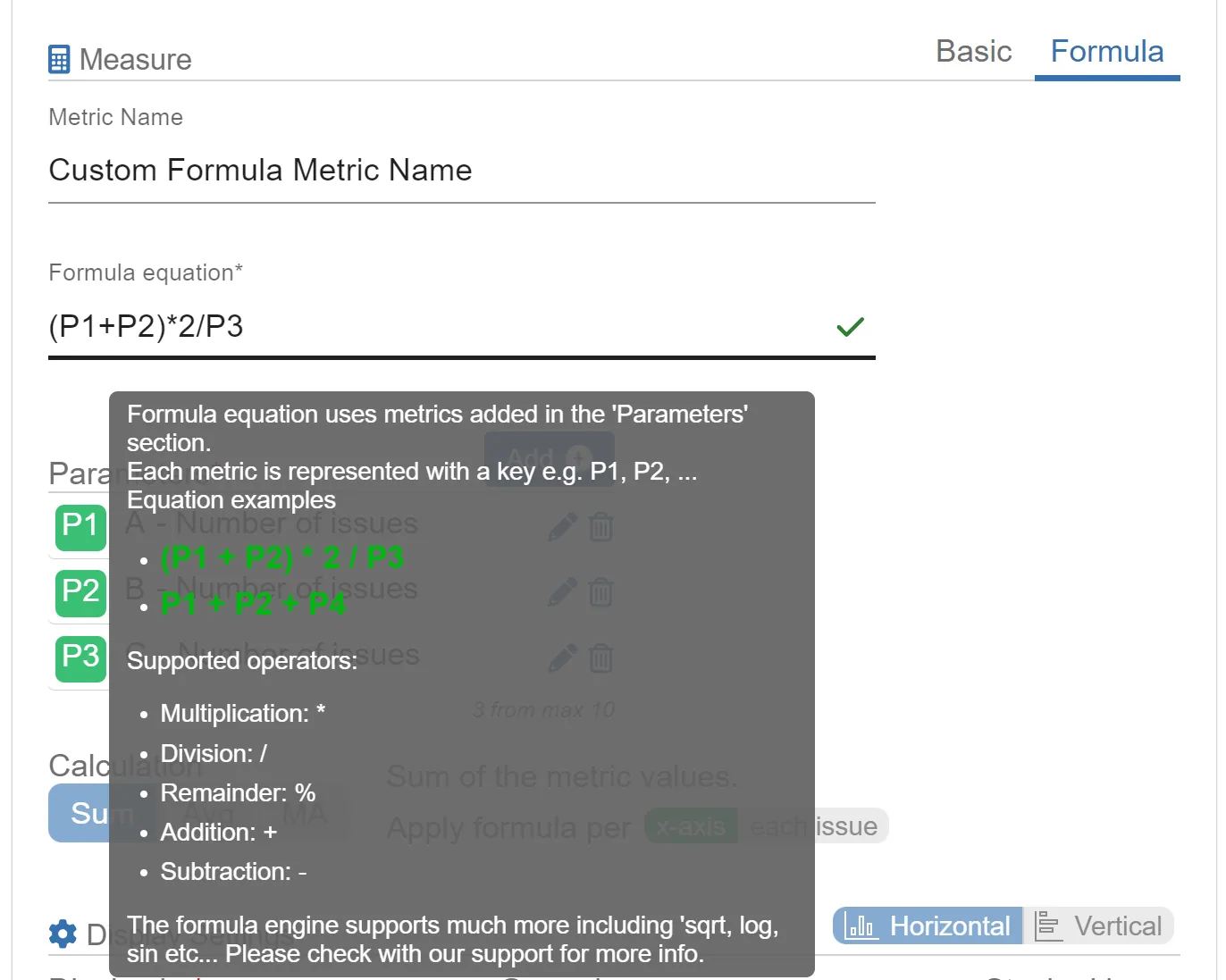
The process is simple: from the gadget settings you select “Formula” as your metric type, define your parameters (which can be any of the app’s built-in metrics), and then write your formula in a user-friendly editor.
Examples of Custom Jira Reports with Formula Metrics
Here are some practical examples of how you can use Formula Metrics to create insightful KPIs directly on your Jira dashboard:
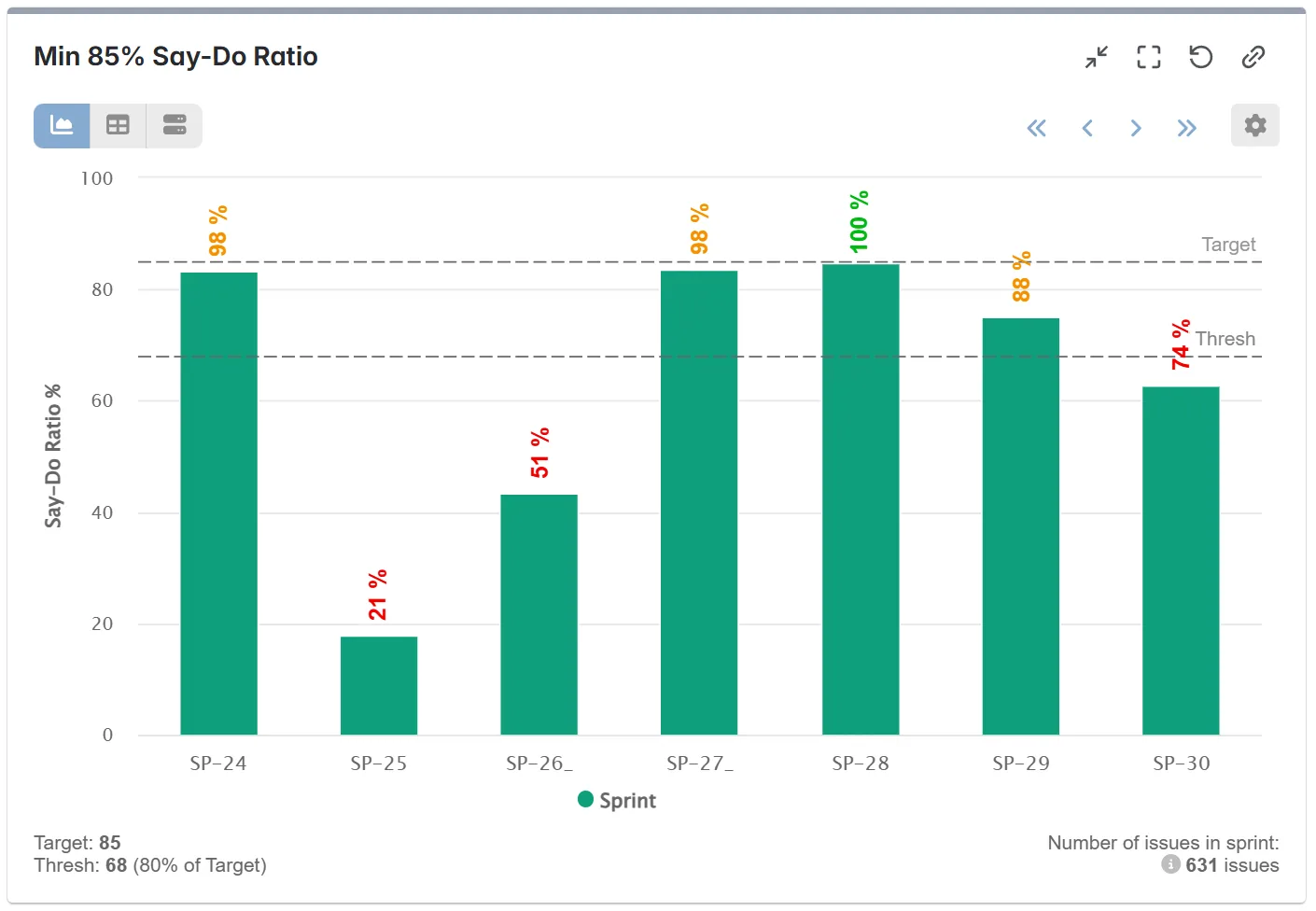
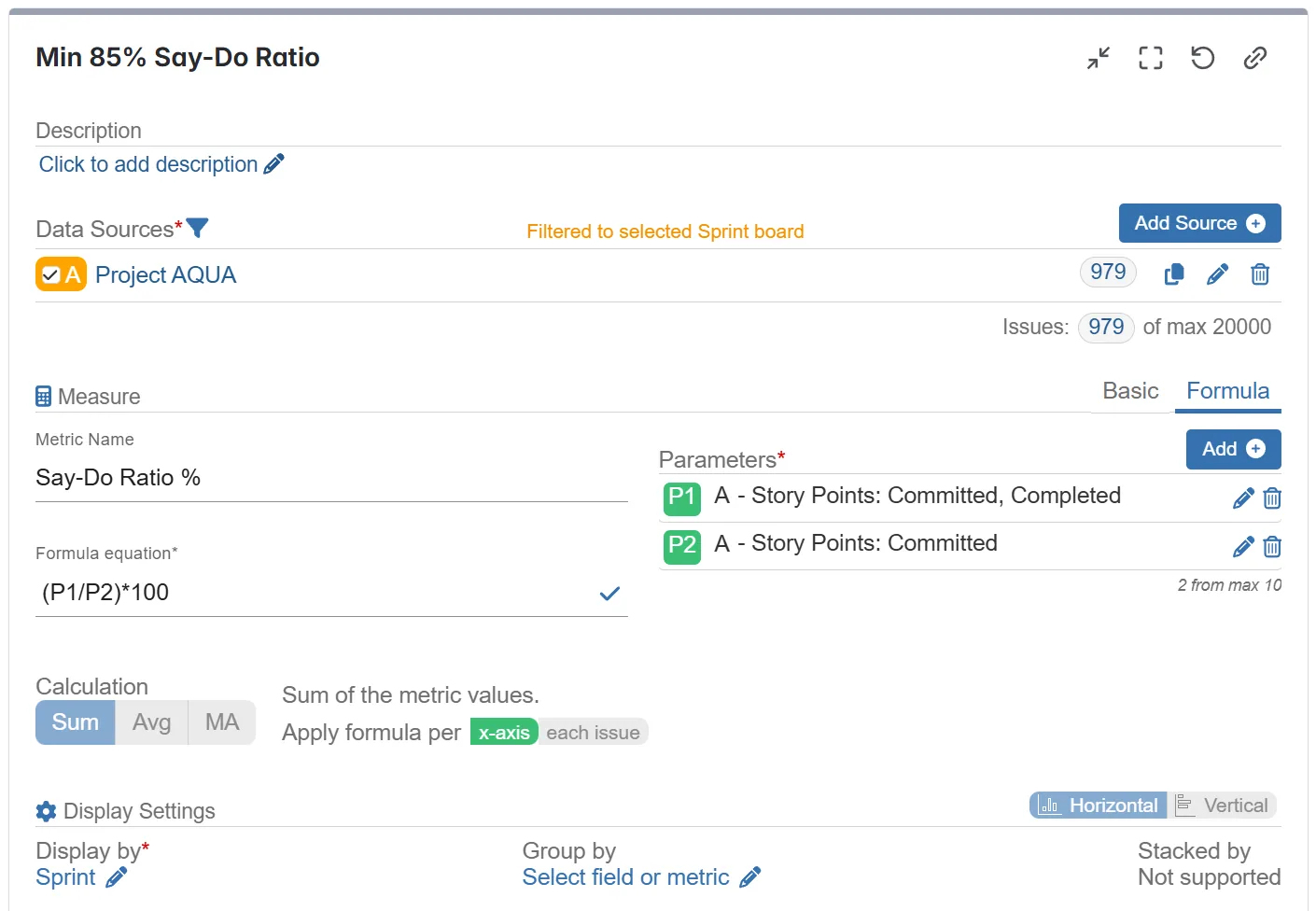
Say-Do Ratio: This KPI measures a team’s reliability by comparing what they committed to versus what they completed. With Formula Metrics, you can easily calculate this by dividing the number of committed and completed story points by the number of committed story points, giving you a clear percentage of commitment delivery.
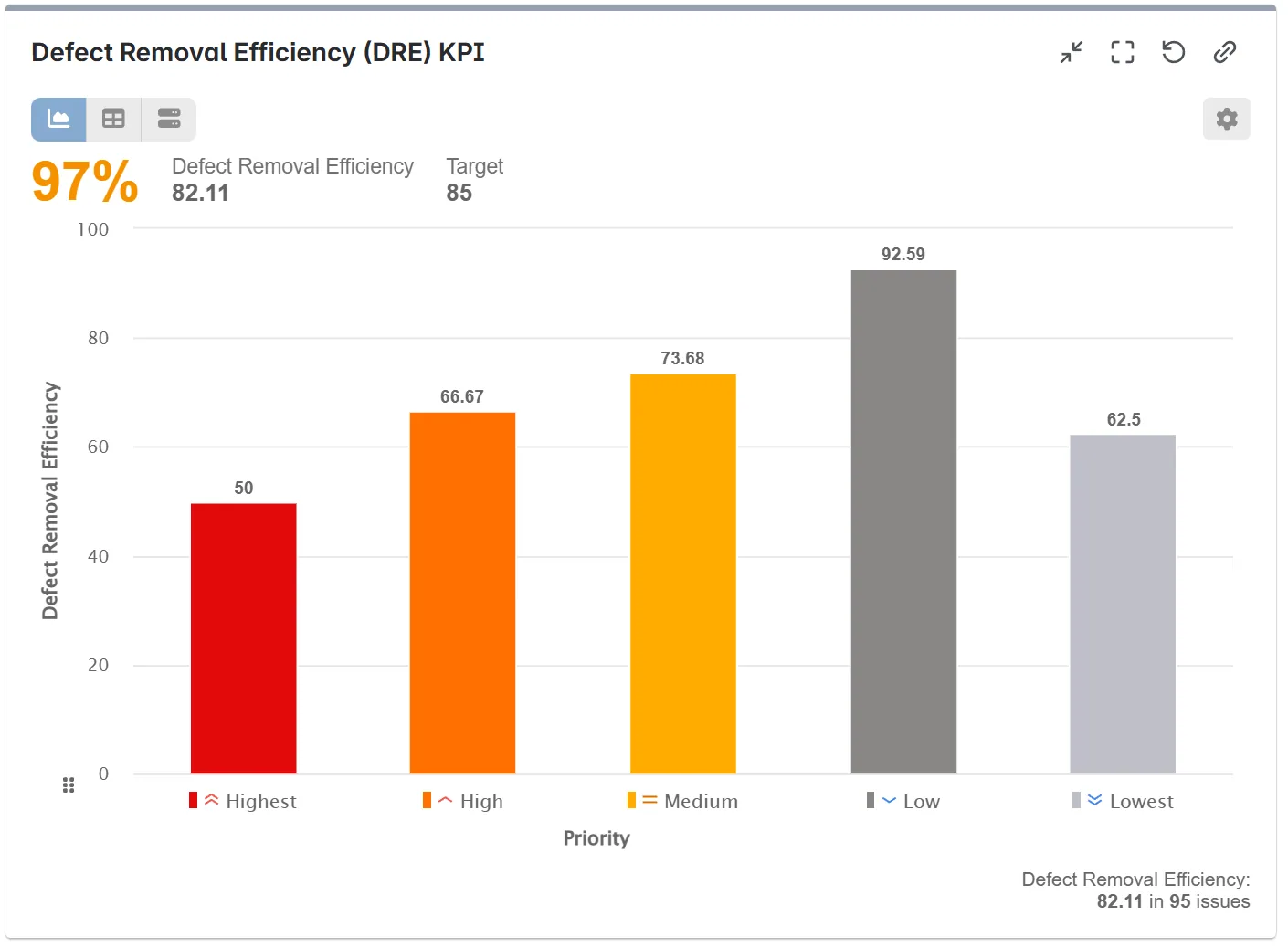
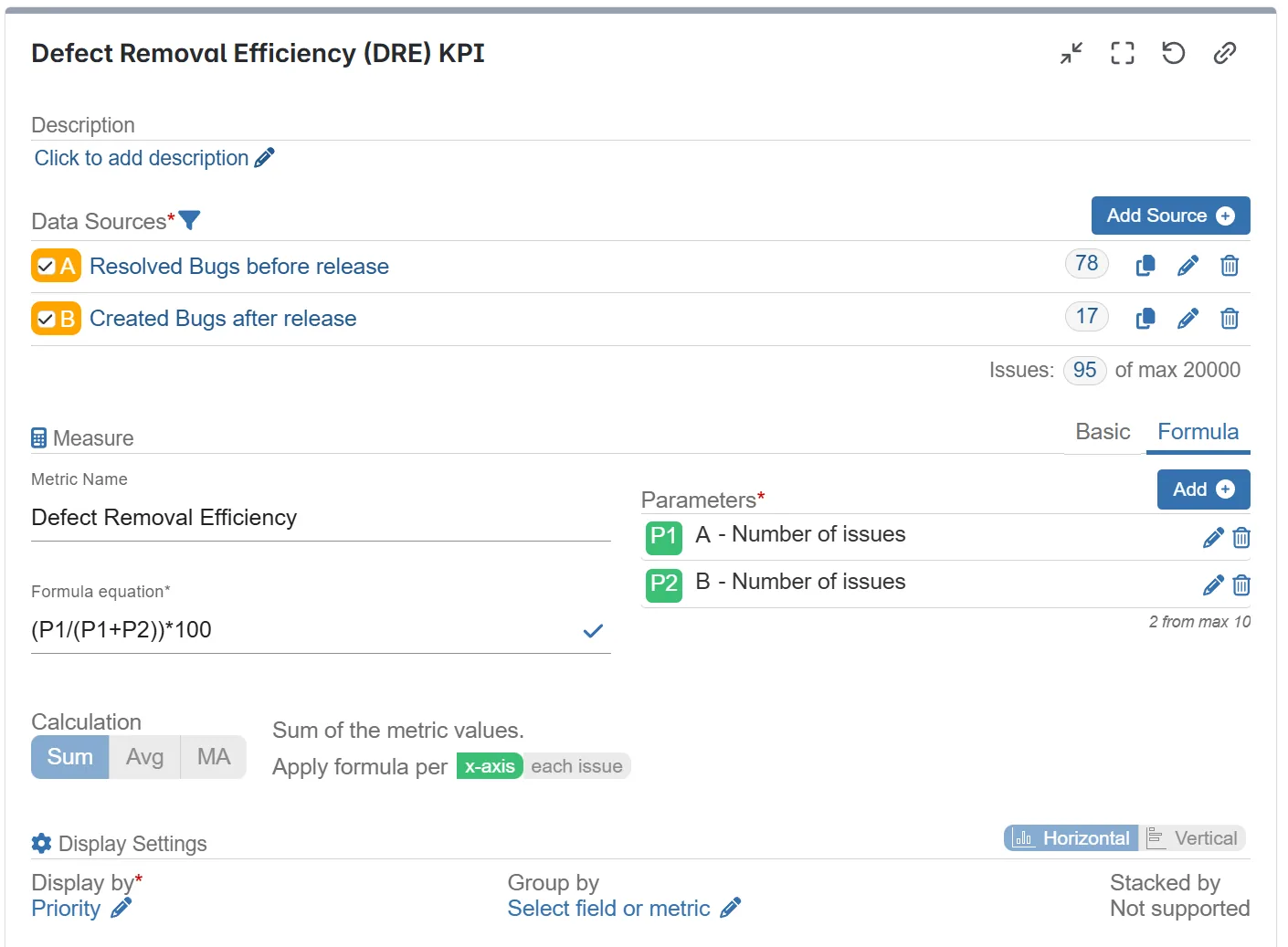
Defect Removal Efficiency (DRE): A critical metric for QA teams, DRE measures the percentage of defects found and fixed before a release. Using Formula Metrics, you can create a formula that divides the number of pre-release defects by the total number of defects (post-release), providing a real-time view of your testing effectiveness.
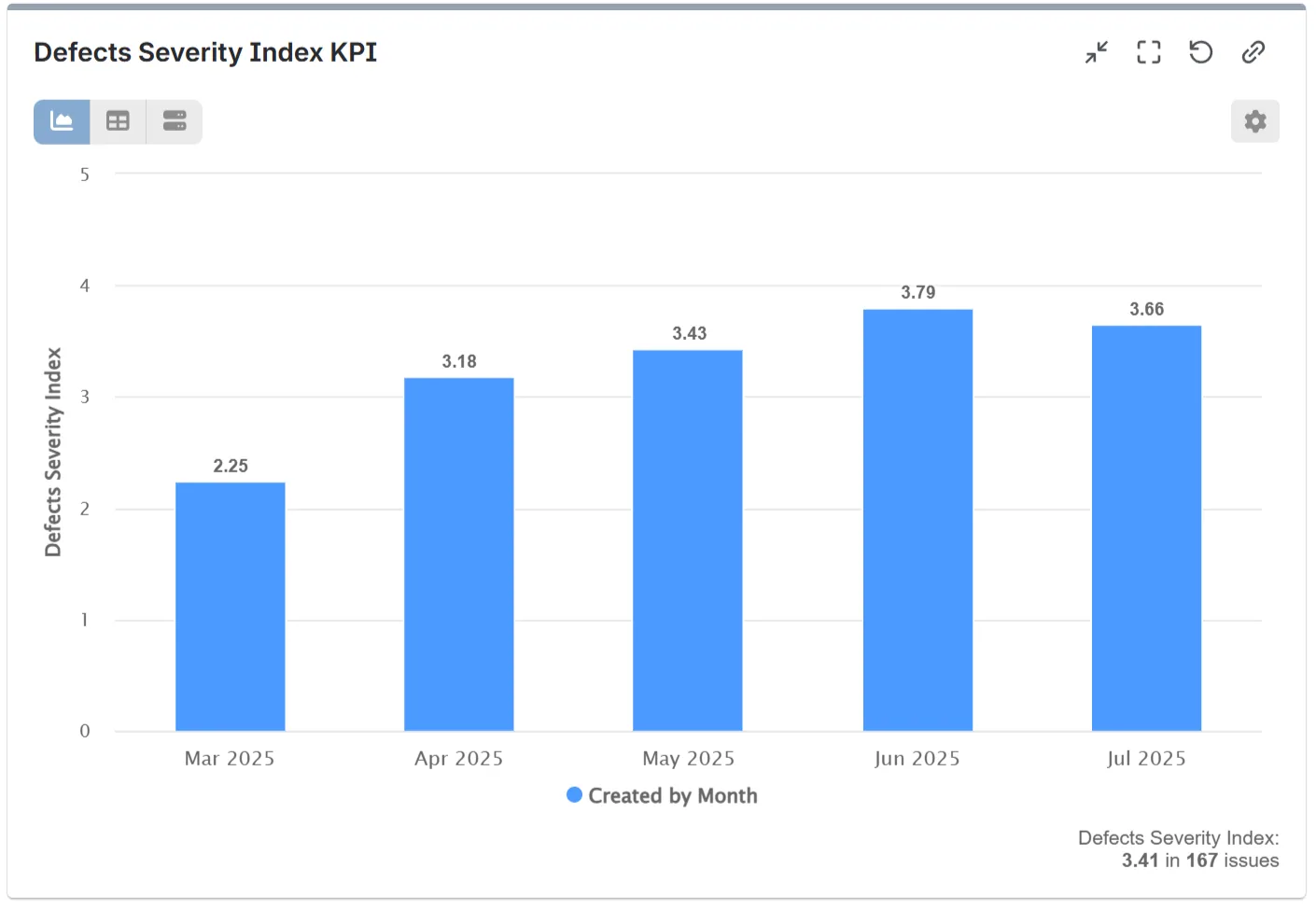
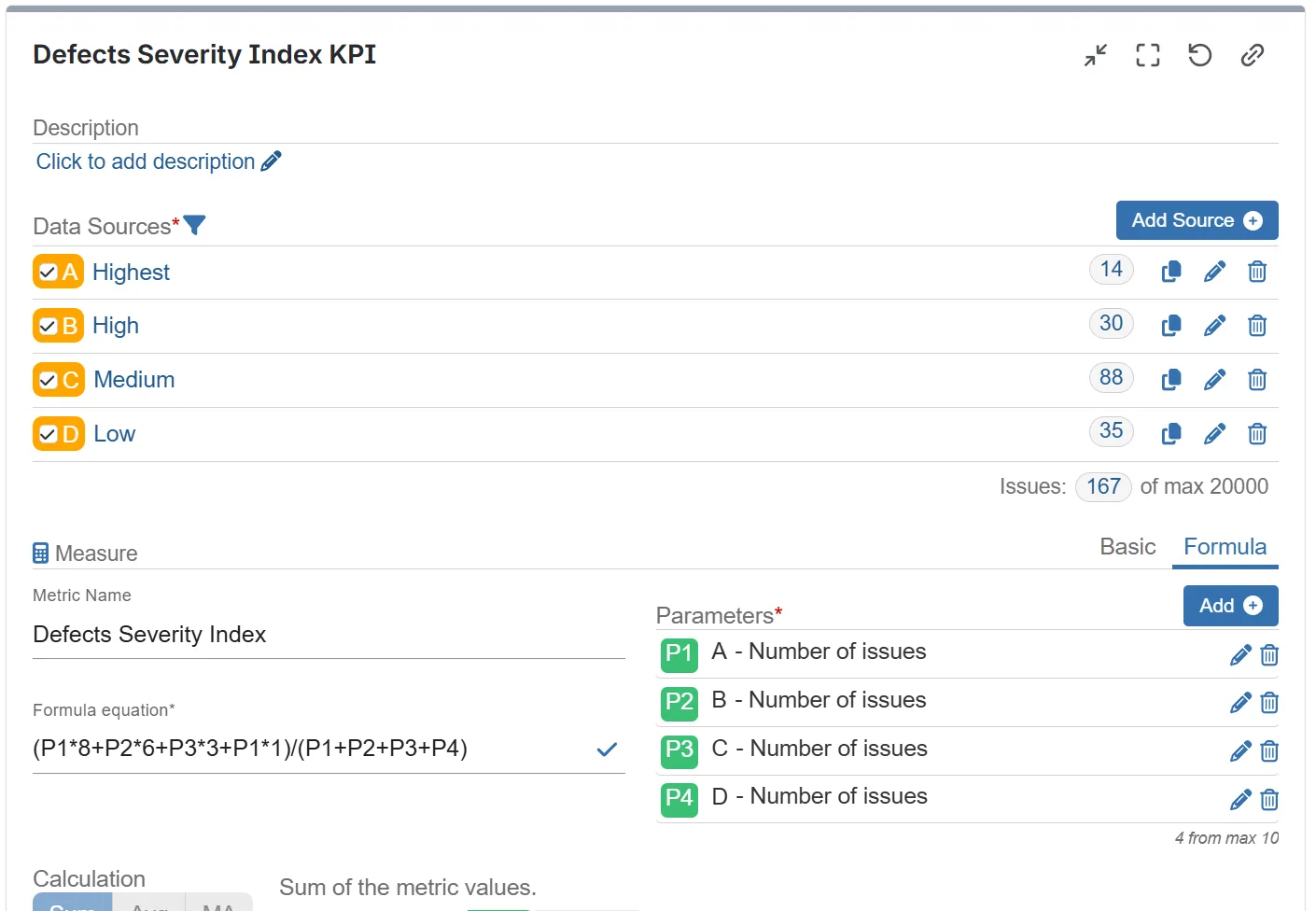
Defects Severity Index: Not all bugs are created equal. The Defects Severity Index gives you a more nuanced view of your bug landscape by assigning weights to different priority levels. With Formula Metrics, you can create a weighted metric that reflects the true impact of open bugs on your project. For example, you can assign a higher weight to “Highest” priority bugs than “Low” priority ones.
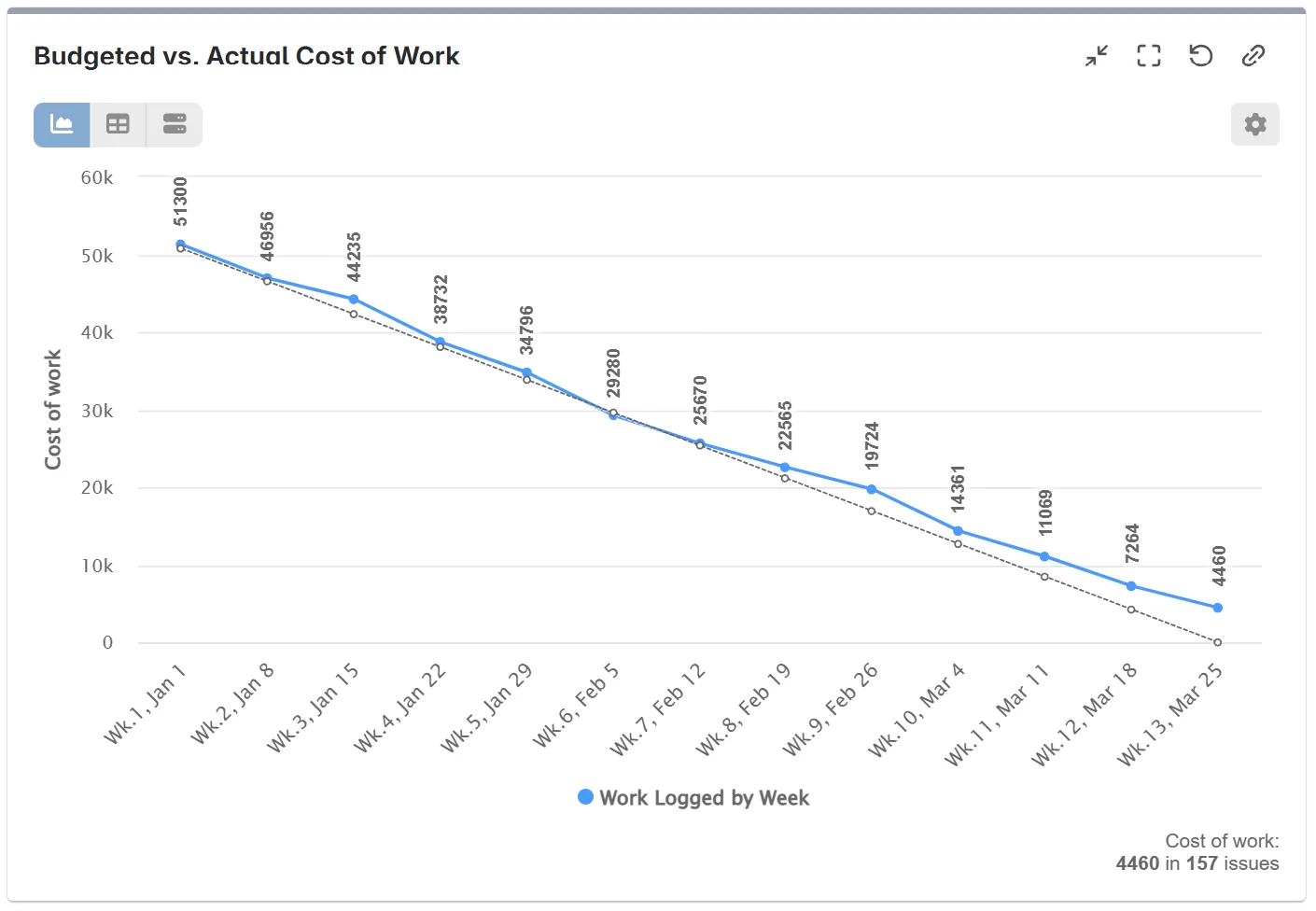
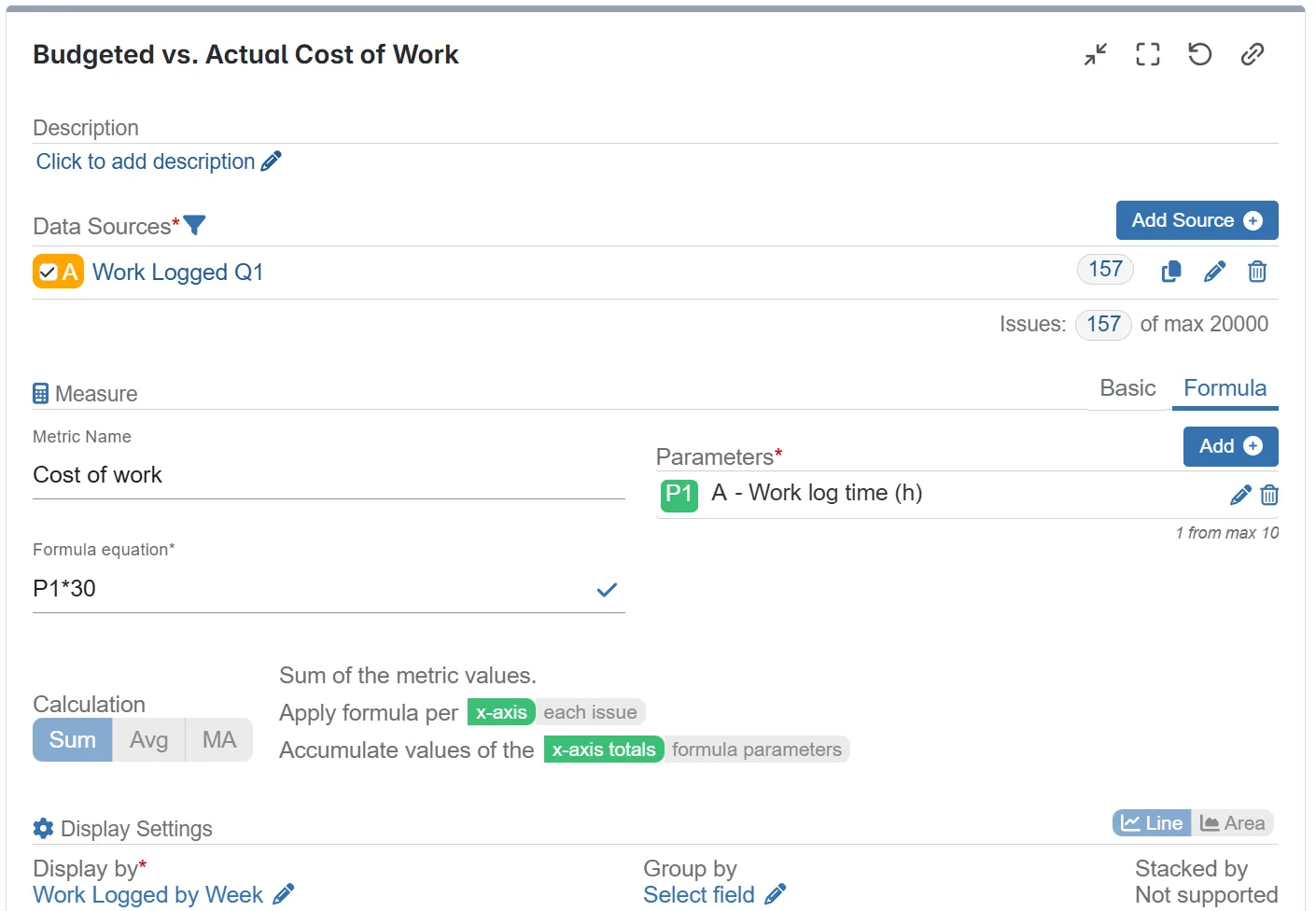
Budget vs. Actual Cost: Keep your projects on budget by tracking costs in real-time. By combining the “Work Log time” metric with a custom hourly rate in a formula, you can calculate the actual cost of work. You can then use the app’s target feature to visualize this against your budget in a burndown chart, giving you an overview of your financial performance.
Take Your Jira Reporting to the Next Level
Stop wrestling with spreadsheets and start getting the insights you need, when you need them, directly in Jira. The Performance Objectives app for Jira, with its advanced Formula Metrics feature, enables you to create the custom KPIs that matter most to your business.
Try a free 30-day trial of the Performance Objectives app from the Atlassian Marketplace today!
- Beyond the Jira Velocity Report: Enhancing Multi-Sprint Reporting
 How to Track Open Issues Over Time in Jira (with Historical Trends)
 Beyond Basic Bug Tracking: 4+ Reports for Advanced Jira Defect Management
 A Guide to Building Advanced Sprint Reports for Jira Dashboard
 Jira Time in Status Reports: A Practical Guide to Improving Your Workflow
 Managing Sprint Carryover in Jira
 How to Filter and Report on Overdue Issues in Jira
 Limitations of Reporting on Time Spent by Assignee in Jira
Meaningful Reports for Jira, Made Easy
DevAcrobats develops reporting apps for Jira that extend its capabilities, enabling teams to streamline workflows and enhance performance.