

No-Response Resolution Ratio
What is No-Response Resolution?
In Jira Service Management (JSM), requests move to a “Done” status category when the workflow marks them as completed. This can happen after the support team resolves the issue, or when a ticket is closed for other reasons, such as reporter’s inactivity or work that cannot proceed.
For example, a technical issue may be reported without sufficient information to reproduce or diagnose it, a request for pricing may omit key details such as the size or type of the organization, or a customer may state that they cannot access a service without providing relevant account information, subscription details, or error messages. Even when assignees proactively request the missing details, the reporter may not provide them, leaving the team unable to deliver a resolution. If you do not distinguish between requests resolved after a provided solution and those closed due to customer inactivity, your resolution metrics can become misleading.
Start tracking the No-Response closure rate in Jira to measure how many tickets are closed because the reporter did not respond, compared to all closed tickets. In this article, we will show you how to configure a No-Response Resolution Ratio report in Jira with the Performance Objectives app.
How to configure a No-Response Resolution Ratio Report in Jira?
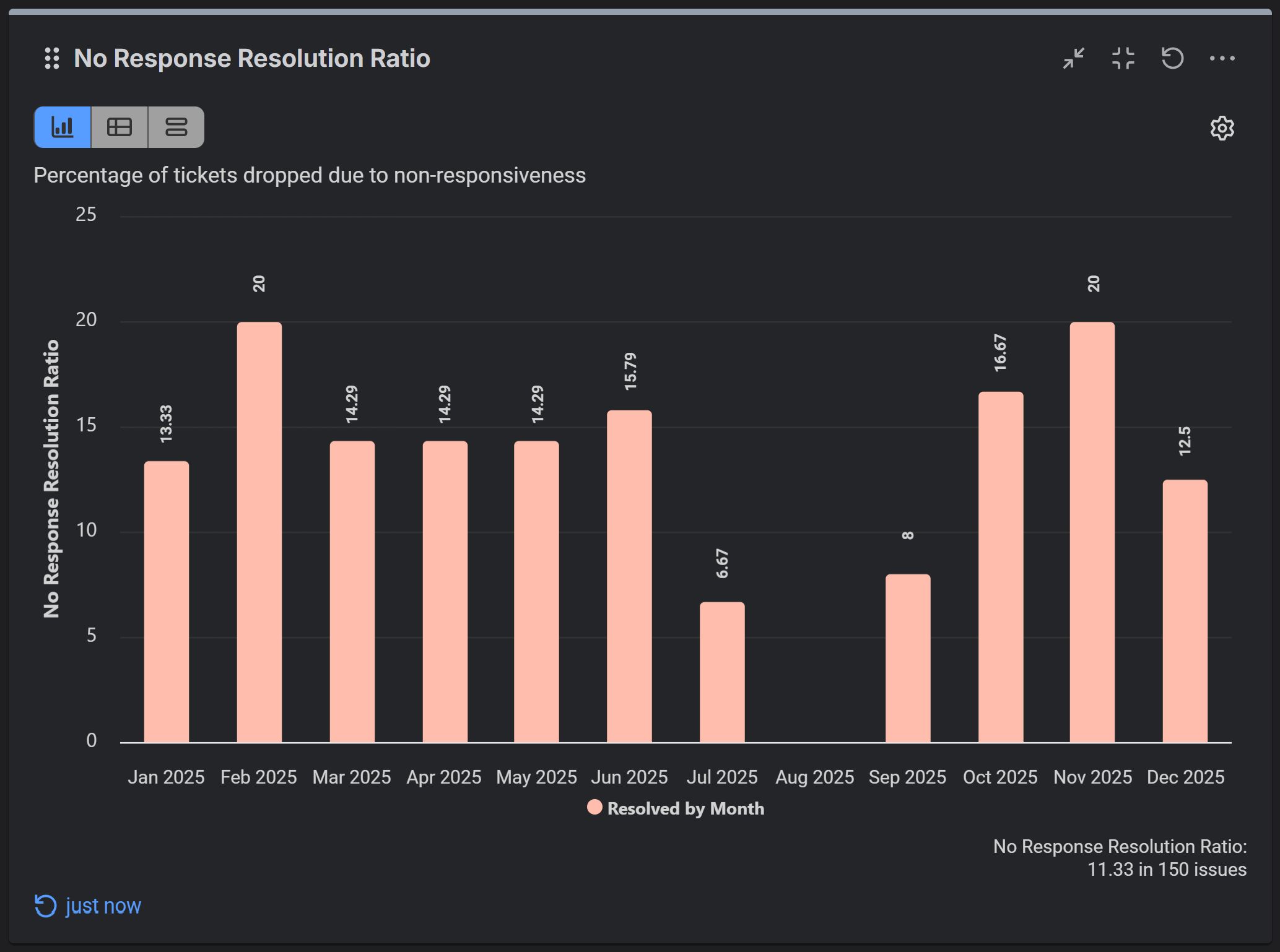
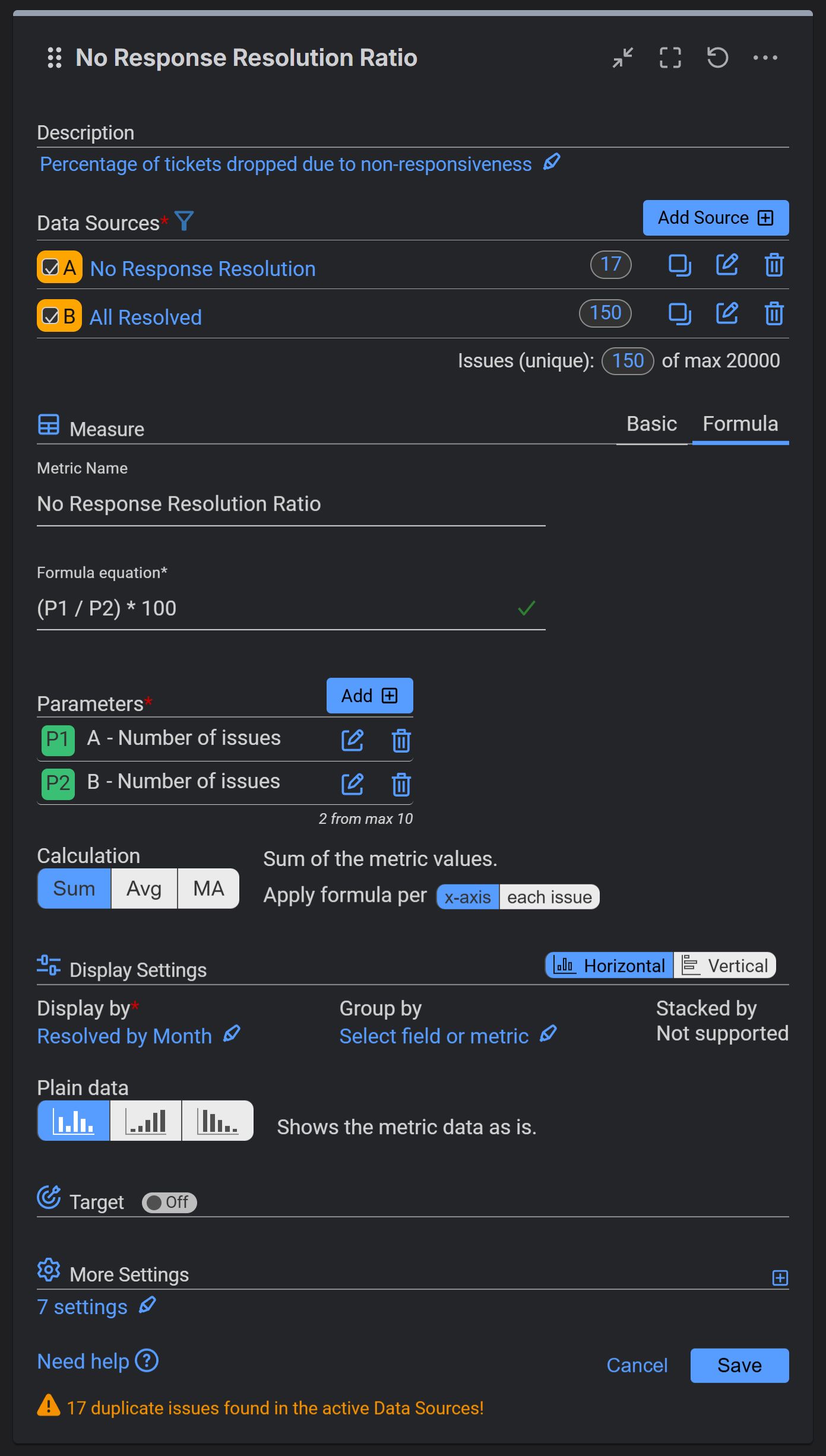
Step-by-step configuration of the No-Response Resolution Ratio report in Jira:
Step 1: Configure two data sources.
- Data source A: Filtering resolved issues from a service project and date period you wish to include in your report. Additionally, add Resolution filter and select the resolution type that signifies customer inactivity, such as “No response”.
- Data source B: Filtering all resolved issues from the same project and period.
Step 2: Change the metric type from Basic to Formula and add two formula parameters:
- P1 = Number of issues from Data Source A
- P2 = Number of issues from Data Source B
Step 3: Enter the following formula equation, to calculate the percentage of resolved issues that were closed with the “No Response” resolution:
(P1 / P2) * 100
Step 4: Provide a clear metric name, for example: “No-response resolution rate”.
Step 5: For Display by select the Resolved field and select your preferred date granularity. In our sample, we use by Month.
Watch this tutorial video on configuring the No-Response Ratio report in Jira:
How to auto-resolve inactive tickets in Jira and tag them as “No Response”?
Creating an automation rule to auto-close Jira tickets and set a predefined resolution ensures the resolution is applied consistently, instead of relying on agents to select it manually during workflow transitions.
In JSM, you can handle tickets that have been inactive, for example, in Waiting for Customer* status for 5 days, using automation rules. Here’s how:
- Set the Trigger: Choose Scheduled (e.g., every 24 hours) and use a JQL query to find tickets in Waiting for Customer status that haven’t been updated in 5 days: status = “Waiting for Customer” AND updated < -5d
- Define the Action: Use Transition Issue to move the ticket to Resolved or Done status. At the same time, set the Resolution field to No Response.
- Optional Reminder: You may also create a separate rule to send a reminder email to the reporter or add a comment on the ticket before it auto‑closes. This gives the customer a final chance to respond before the ticket is resolved. Learn how to Automate follow-ups in Jira Service Management Cloud.
*Note: The default Jira Service Management IT Support workflow includes a Waiting for Customer (or similar) status, where the request is on hold pending a customer response. However, this status name, and even its presence, can vary depending on your space’s workflow configuration. Make sure to use the status that matches your workflow when applying automation rules.
This approach ensures tickets are consistently categorized and allows you to distinguish between items that were successfully resolved and those closed due to customer inactivity.
In Conclusion
Use the No-Response Resolution Ratio report to pinpoint gaps in your service delivery. A high ratio may indicate that your initial response is arriving too late to be relevant, or that your intake forms should be optimized to capture essential details right at the moment of ticket creation.
If you need help with the configuration of this or any other KPI, please contact our support.