
Jira Due Date Change History
See how to pull an aggregated Jira due date change history report, instead of playing detective across individual Jira issue history tabs.
Pulling a list of work items with changed Jira Due dates – and other important custom date fields tied to deadlines, delivery commitments, SLAs, or review cycles – is a recurring need for project managers, team leads, operations teams, and delivery managers responsible for tracking commitments, deadlines, and release schedules. These changes are especially important during capacity planning, release management, SLA tracking, and stakeholder reporting, where teams need visibility into shifting timelines and delivery risks.
While Jira records every field change at the issue level, turning that historical data into an aggregated, time-based report remains a limitation of Jira’s native reporting capabilities.
Native Jira Tools for Tracking Field Change History (and Their Limits)
If you need the change history of the Due date field for a single work item, Jira has you covered: open the issue, go to the History tab, and you’ll see every change along with timestamps and before/after values. Jira also provides the Activity Stream dashboard gadget, which surfaces a chronological feed of recent activity across projects.
The limitation appears when you need that history aggregated across a project or a defined time period, or when you want to analyze trends over time. Fields such as Due date and custom date fields do not support JQL historical operators* (was, was not, changed), which means you cannot run a query that returns a list of issues where these field values changed. As a result, you cannot save such queries for repeated use or feed them into dashboard gadgets to monitor change trends over time.
In other words, the history exists at the individual issue level, but Jira native reporting and search capabilities do not aggregate it into scalable, time-based reports.
*Learn more on our What JQL Can (and Can’t) Do for Tracking Jira Historical Changes blog article.
Visualizing Jira Due Date Change History Over Time
If you need a complete Jira due date change history for a past period in a single aggregated view, you’ll need a third-party app.
User Activity Timeline & History for Jira is a Jira Cloud app developed by DevAcrobats that addresses this gap. At its core, the app collects user actions from Jira issue history, aggregates them by user or team, and presents the data in customizable team and individual activity reports.
The app supports two visualization modes: an interactive heatmap and a trend line chart, covering either a rolling period of up to 365 days or a shorter selected date range. This makes it possible to see not only which issues were changed, but also how frequently a specific type of change occurs and whether that activity is increasing or decreasing over time.
For example, a steady increase in due date changes approaching a release becomes visible as a clear pattern, rather than something you need to piece together manually by reviewing issues one by one.
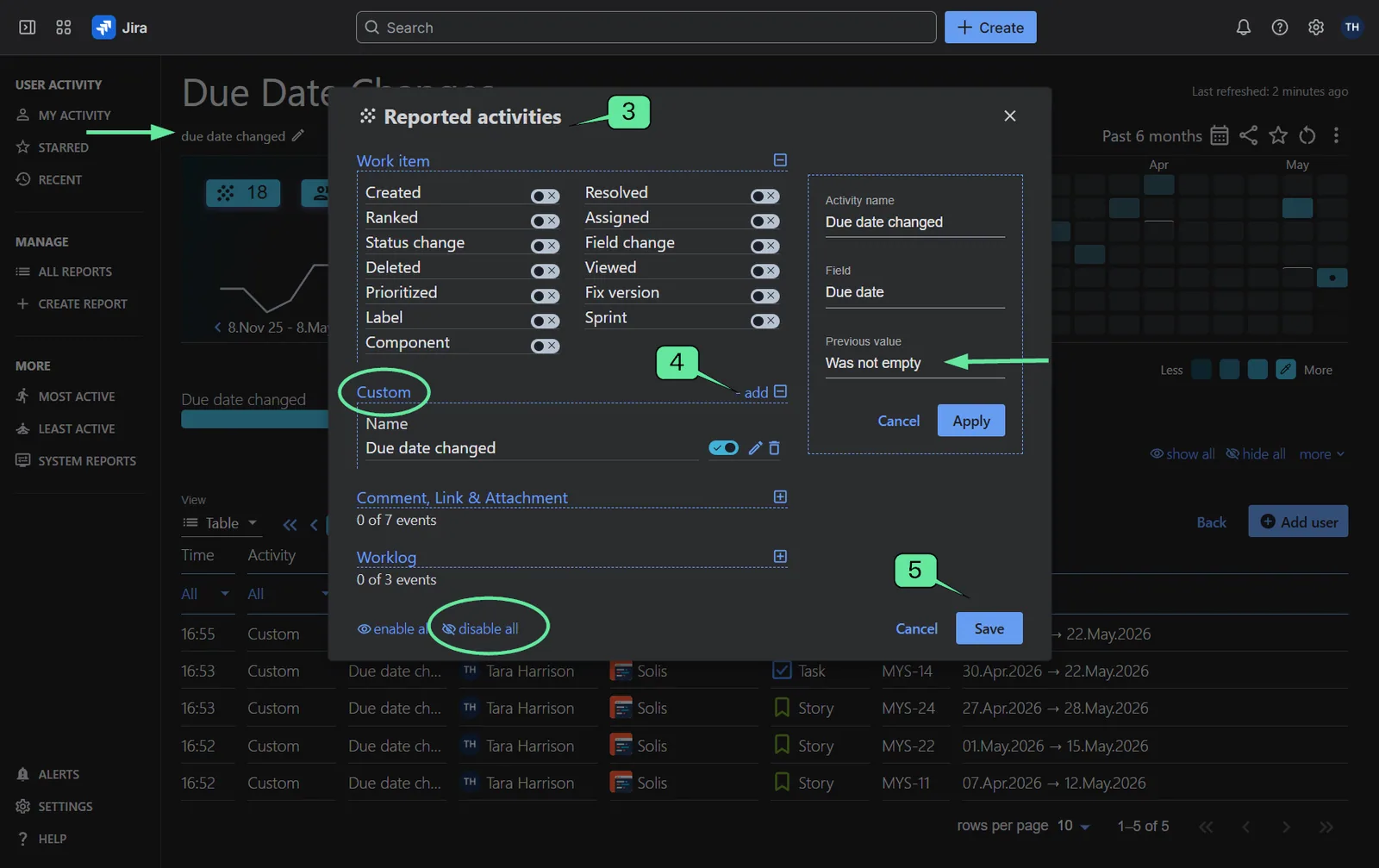
For this use case – tracking changes to the “Due date” field – the app supports a custom activity configuration that lets you define conditions based on the field’s previous value. You can choose whether the previous value was empty, was not empty, or use any previous value. For example, setting the condition to “previous value was not empty” filters the report to actual revisions of committed dates, rather than the initial population of the field. Reports can also be further scoped by project, epic, work type, Jira filter, etc.
Clicking any cell in the heatmap brings up a detailed table of changes that occurred on that day, with direct links to the corresponding Jira work items.
How to Configure a Jira Report for Due Date Change History (Step-by-Step)
This report is particularly valuable for project managers, delivery managers, operations teams, and client-facing engineering teams during project health reviews, release planning, stakeholder reporting, and capacity planning discussions. It can also help demonstrate how project timelines have evolved over time for stakeholders or clients.
A Jira Due date change history report can help answer questions such as:
- Which users change due dates most frequently?
- How often are due dates pushed out?
- Are there many last-minute due date revisions?
- Which projects or teams change timelines most often?
Follow the steps below to configure this report:
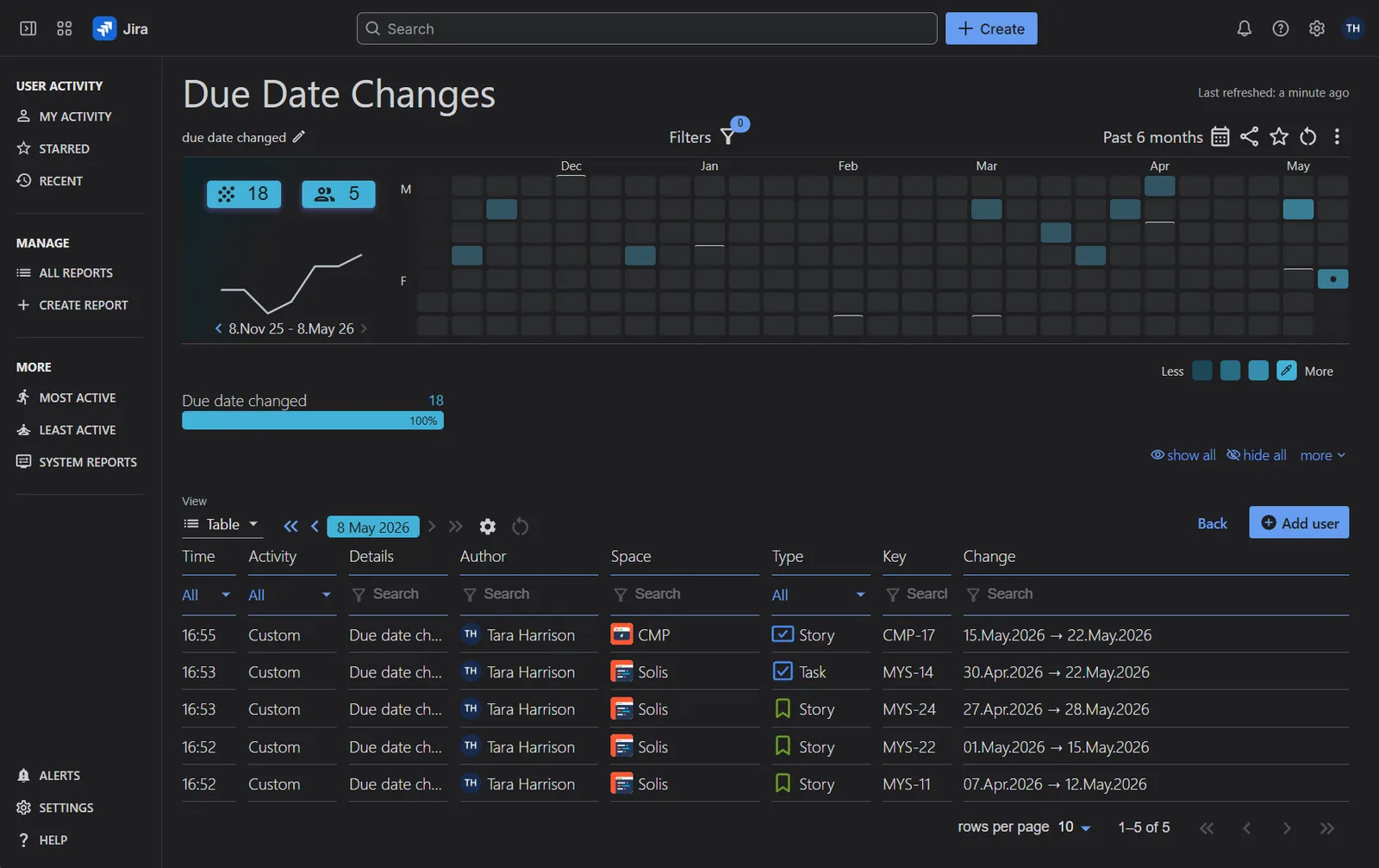
Step 1: Access the app from the Jira sidebar and click _Create Report_.
Step 2: Enter a clear and descriptive report name. Add the users whose activity you want to track, and select the default report view.
Step 3: Open the _Reported Activities_ modal and disable all default activities.
Step 4: Add a custom activity with the following configuration:
- Activity name: Due Date Changes
- Field: Due Date
- Previous value condition: was not empty
Step 5: Save the configuration. If needed, apply additional filters or adjust the reporting date range to match your requirements.
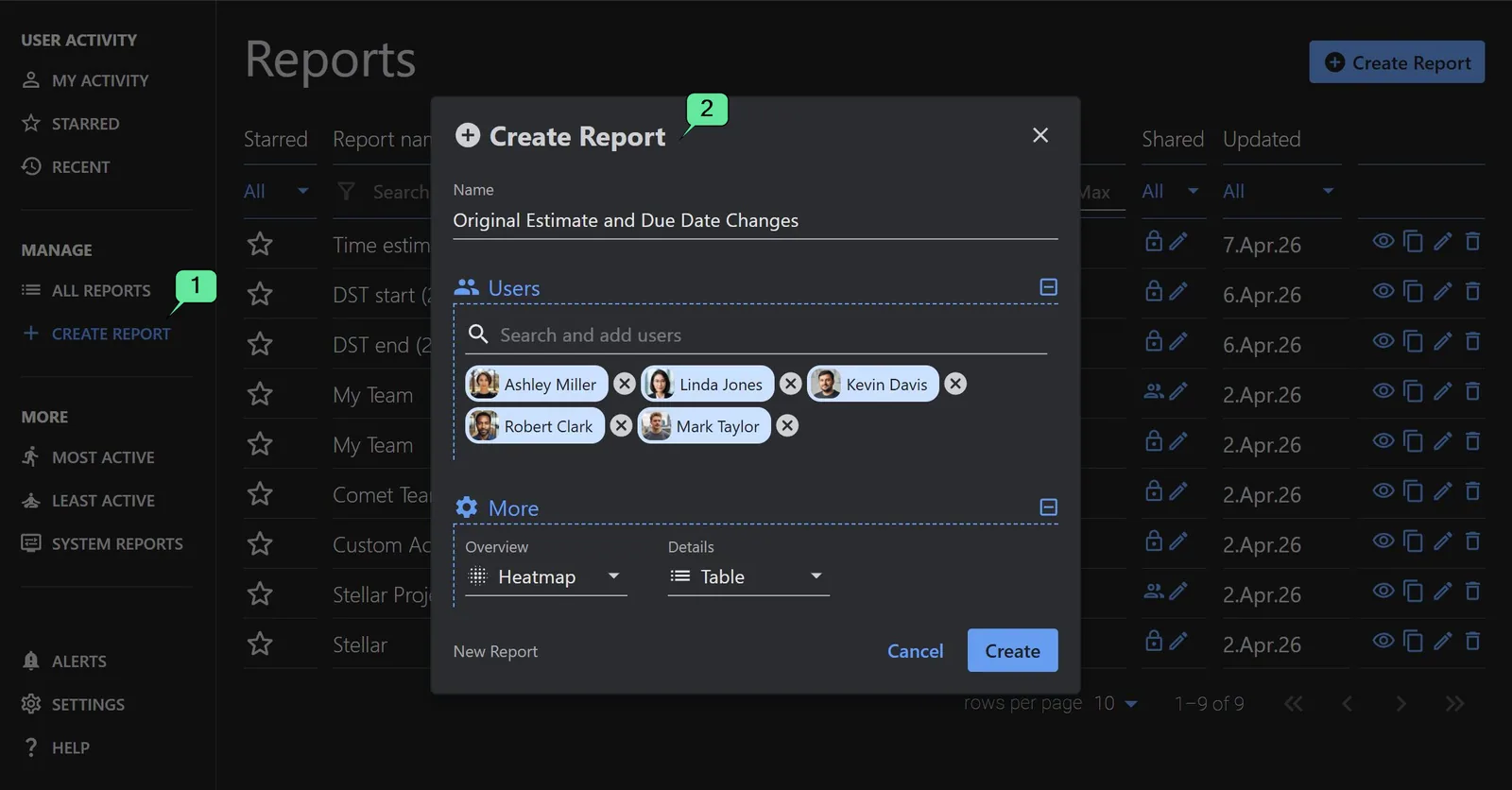
Tip: Once you’ve created your first report, you can save time by copying it for future use. In the All Reports section of the app, find a report with the same users, filters, or date range, create a copy, and adjust only the reported activities you want to change.
FAQ:
____How do I see the history of due date changes in Jira?
Open any Jira work item, scroll to the Activity section, and select the History tab. You’ll see every Due date change with timestamps and before/after values, but only for that single issue.
____Can I track due date changes across multiple Jira issues?
Not with native Jira functionality. JQL does not support historical operators for the_ Due date_ field, which means you cannot query only work items where this field has changed.
To generate an aggregated change history report across multiple work items or Jira projects, you’ll need a third-party app such as User Activity Timeline & History for Jira.
____Can I query changes to custom date fields in Jira?
Not with JQL alone. However, you can track these changes with a third-party issue history app, as long as the custom field changes are recorded in the work item history.
If you use custom date fields in your Jira (such as “Target Release Date” or “Review Date”), you can configure activity reports based on user changes to those fields with User Activity Timeline & History for Jira.
This is just one of many Jira activity reports you can configure with User Activity Timeline app. Explore the app’s Confluence documentation for more report samples and configuration steps, and install the app from the Atlassian Marketplace to start auditing field change history in Jira.
Related articles
More report examples for Misc KPI Reports
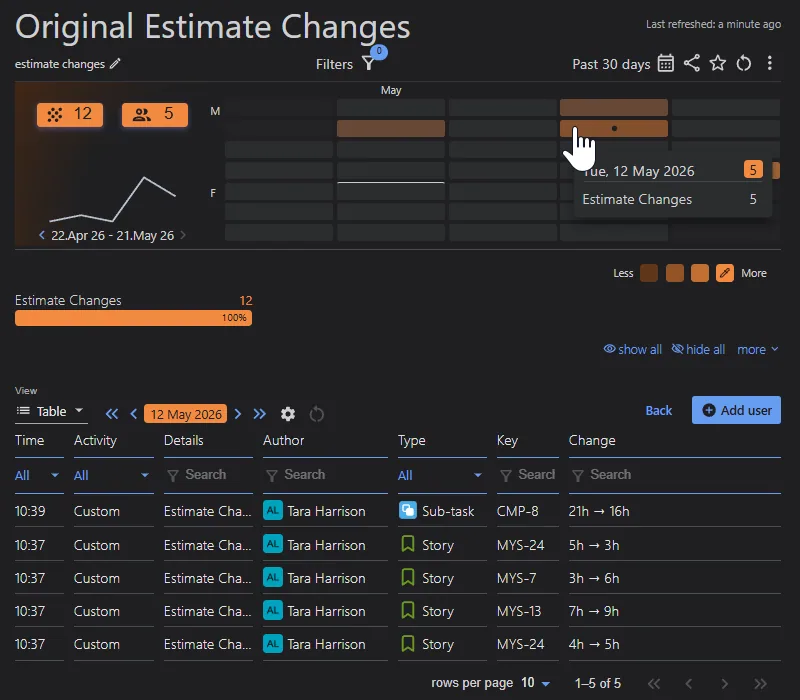 Misc KPI ReportsJira Original Estimate Change History Report
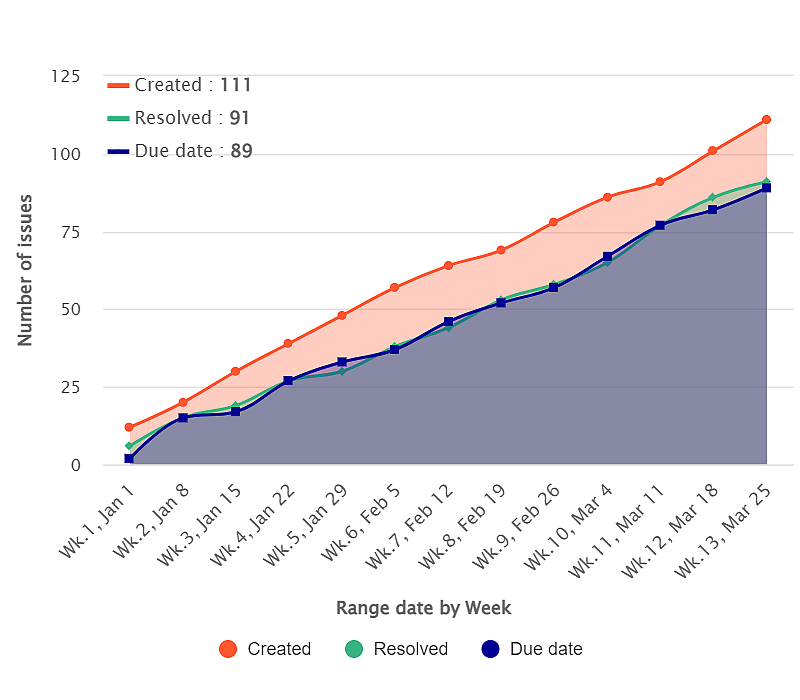 Service ManagementCreated vs Resolved vs Any Date
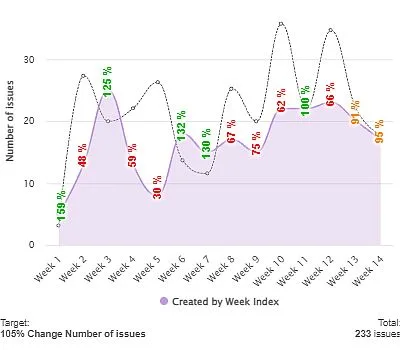 Misc KPI ReportsPeriod over Period Chart – % Change Comparison
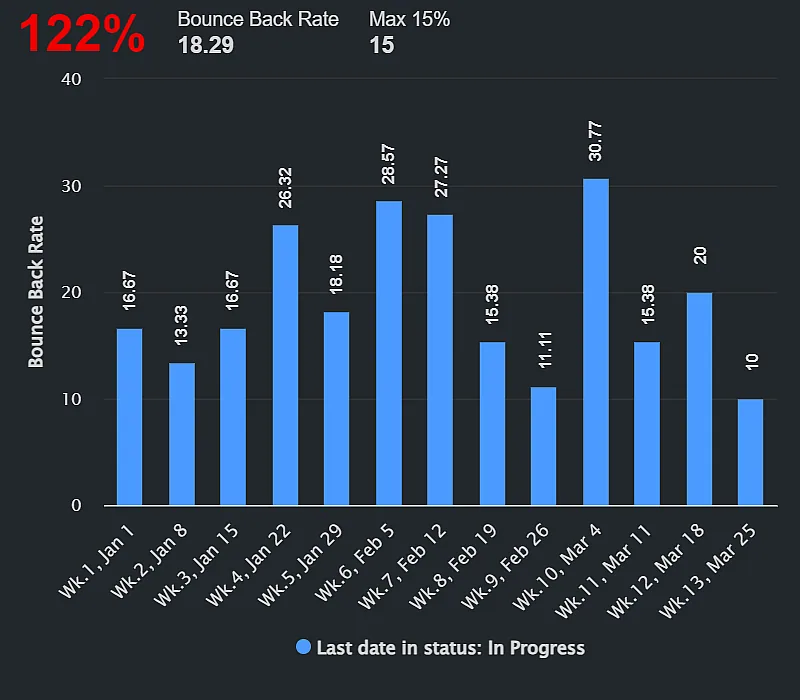 Misc KPI ReportsBounce Back Rate
Meaningful Reports for Jira, Made Easy
DevAcrobats develops reporting apps for Jira that extend its capabilities, enabling teams to streamline workflows and enhance performance.